Add it as a custom connector and browse our catalogue in your chat.
One connection. Pick your assistant.
- Open your connectorsIn Claude, go to Customize → Connectors → Yours. If a guide sends you to Settings, that panel has moved — it now just points here.
- AddThe Add button is top right.
- Name it and paste the addressName it Songs To Your Eyes and paste the server URL. There is no key and no sign-in step.
- Switch it on in the chatOpen a chat, enable it from the connectors menu, and ask for music.
- Open Skills and ConnectorsFrom the sidebar, then the tab marked Connectors.
- New ConnectorTop right — choose a custom connector.
- Two fieldsA name and the server URL. Grok asks no authentication question at all.
- Use itThe connector shows all tools enabled. Toggle it per chat under + → Connectors.
- One command, anywhere--scope user is what makes it global, so the directory you run it in does not matter:
claude mcp add --transport http --scope user stye https://mcp.songstoyoureyes.com/mcp - Check it landedclaude mcp list shows it. Remove it again with claude mcp remove stye.
- Start a sessionThe tools are there. Ask for music the way you would describe a scene.
- Before you startYou need a personal Google account, not a work or school one, with Keep Activity on. Google’s help page also says you must be 18 or over and in the US. Google AI Pro is not required: we connected it on an account without it.
- Open the Gemini web appOn your phone, tablet or computer, go to gemini.google.com.
- Open Connected AppsOpen the left menu, select Settings & help, then click Connected Apps (tap Personal Intelligence first if you need to).
- Add the appLook for Custom apps for Spark and click Add a custom app.
- Enter the server URLPaste the address above as the app’s MCP server URL, then click Next.
- Leave Advanced features closedIt sits under Show more and is only for servers that lack Dynamic Client Registration and need credentials. This one needs no login, so there is nothing to type.
- Call it by nameIn a chat, enter @ and select the app, so Gemini uses it for that prompt. Then ask for music.
- Cursor desktop app onlyCustom MCPs cannot be added in Cursor’s browser version. Two ways in — Cursor’s own screen, or its settings file — and both end up in the same config.
- Open Customize, then MCPsCustomize is in the left sidebar (or open the Command Palette and choose View: Open MCP Settings). Click MCPs in the row of tabs along the top.
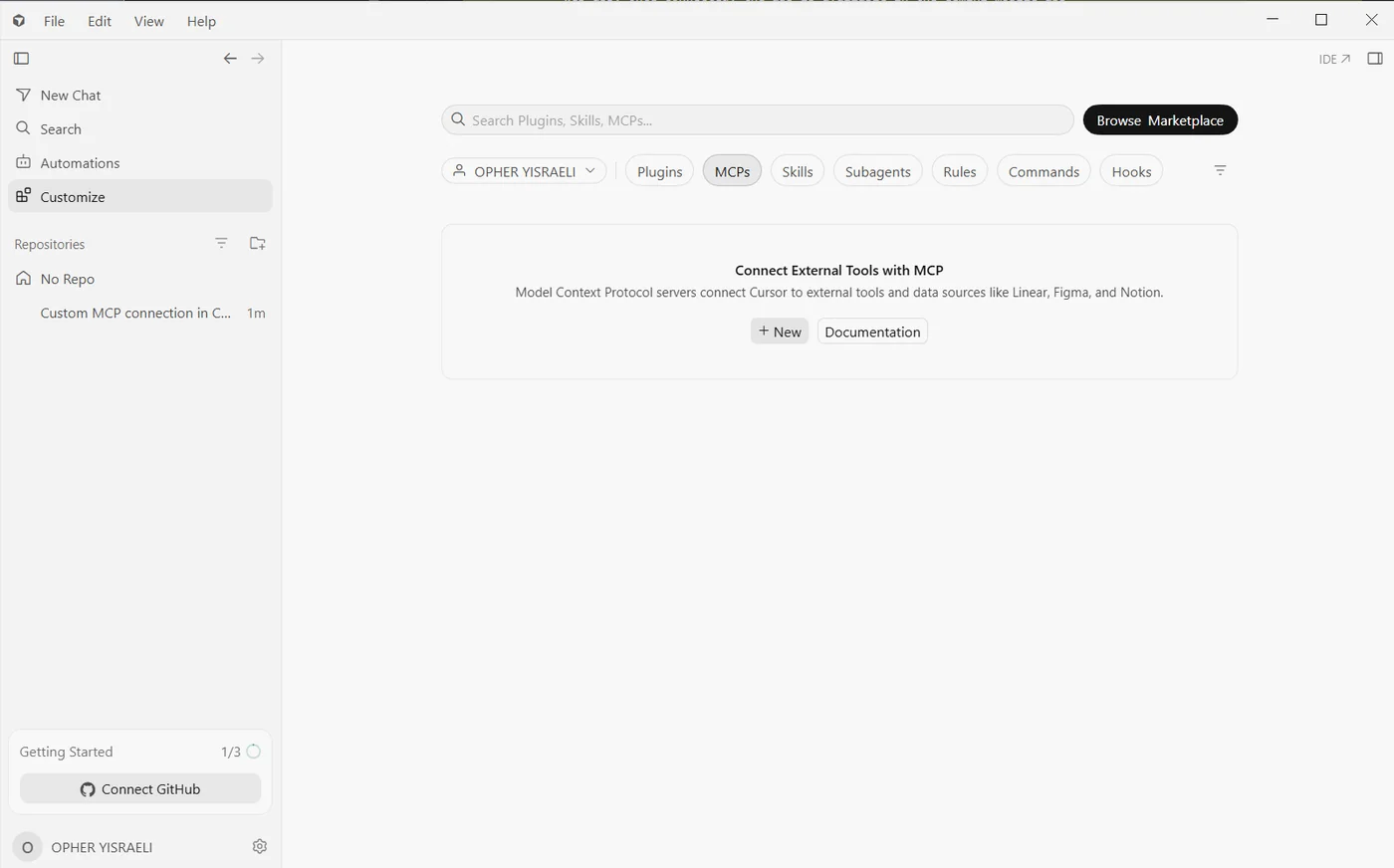
- + NewDepending on your version this is labelled Add Custom MCP or New MCP Server. Cursor opens mcp.json — or a form.
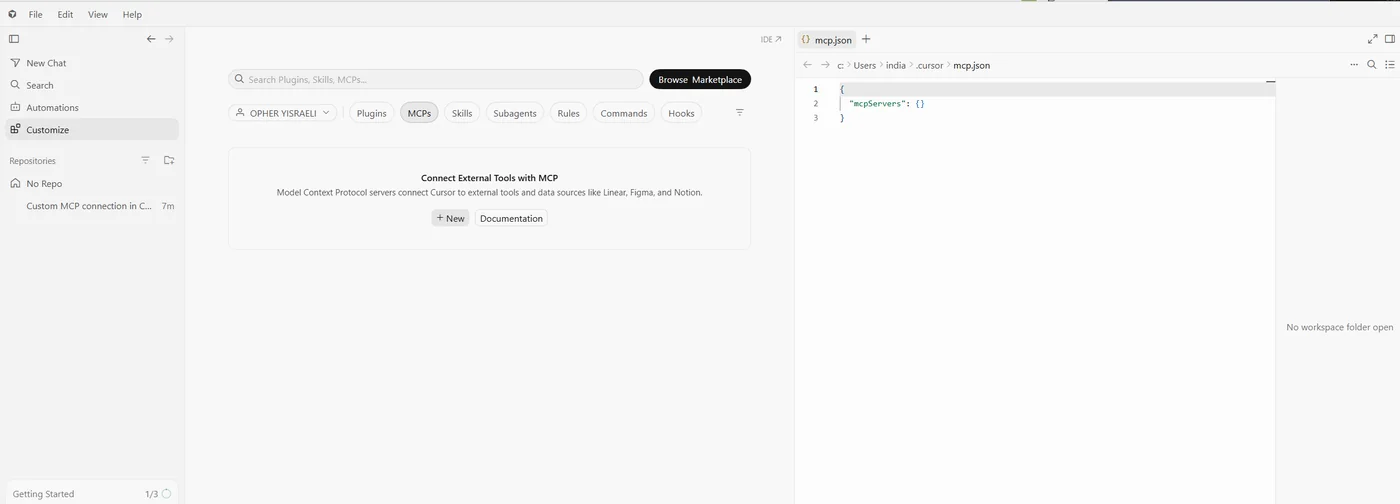
- Add the server, then saveInside mcpServers, add:
"stye_catalog": { "url": "https://mcp.songstoyoureyes.com/mcp" }
Save the file, then check the server is toggled on in the MCPs list if it isn’t already. Cursor shows its usual warning about a third-party server; there is no key and no sign-in.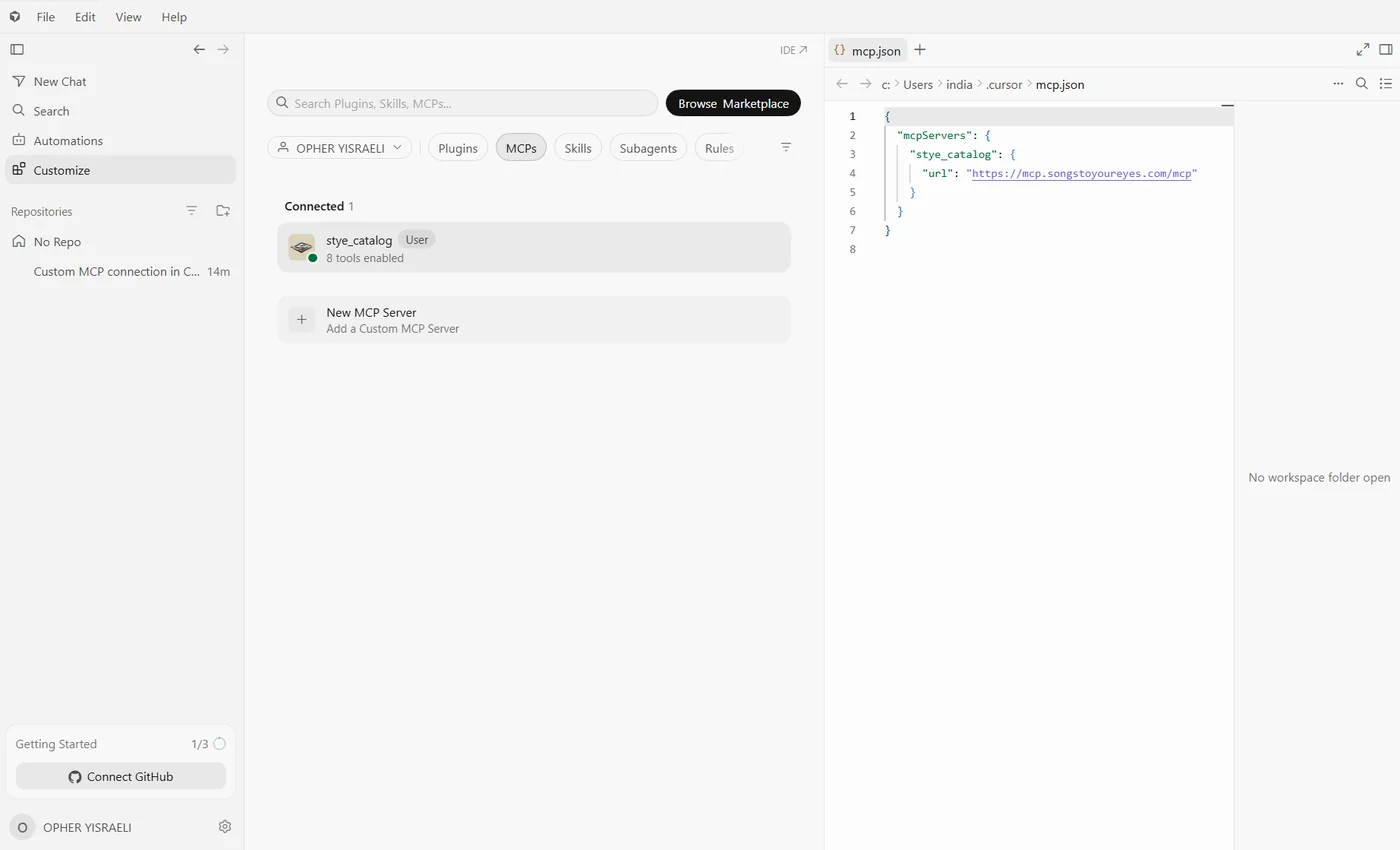
- Switch it on in the chatPress the + beside the model name and, under Search MCPs, make sure Stye Catalog is switched on for that conversation. Then describe the scene you need music for.
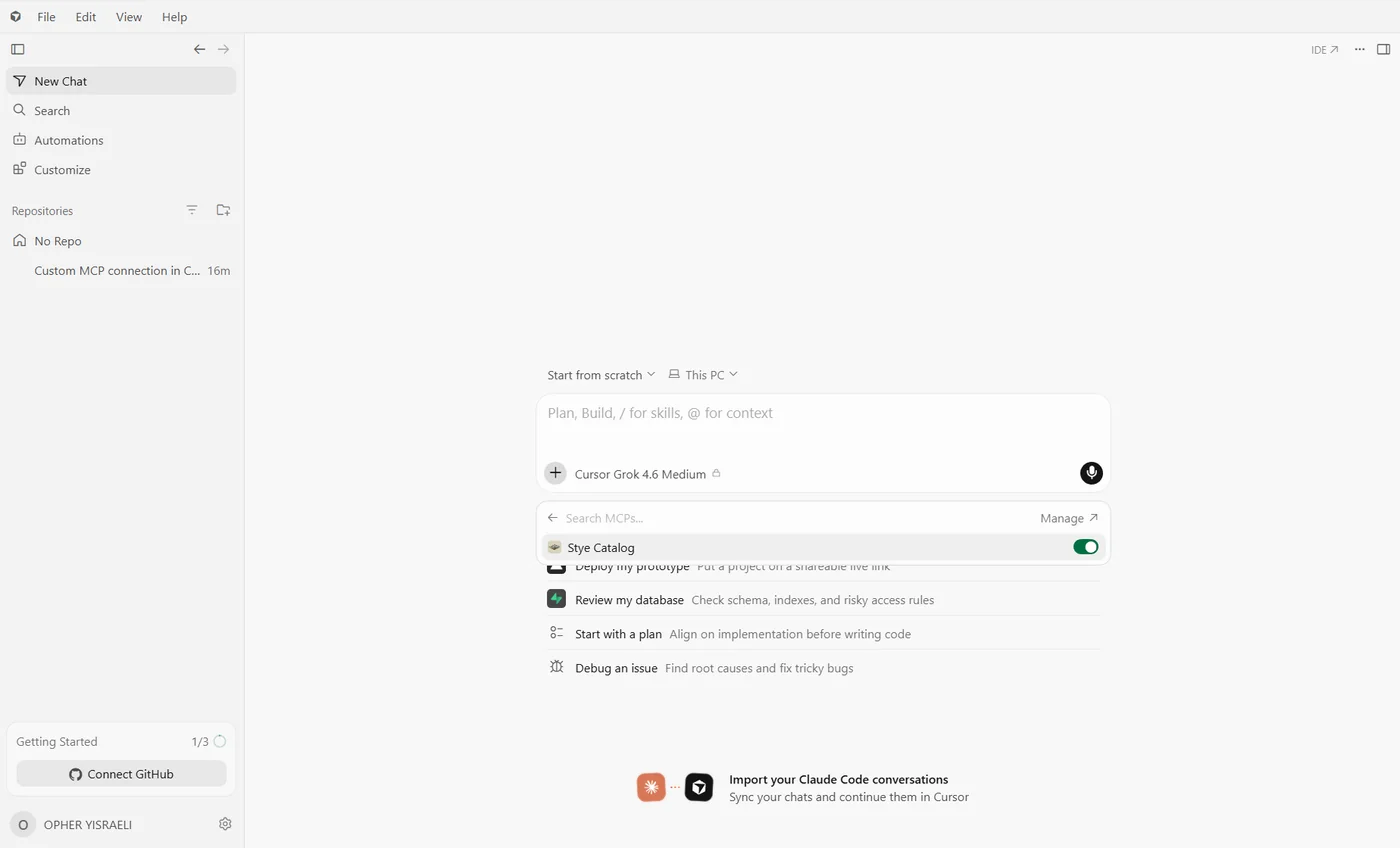
- Prefer the file?Creating or editing ~/.cursor/mcp.json by hand with the same block does exactly the same thing.
- Add a custom or remote MCP serverWherever this client keeps them. Some call it a custom connector, some a remote MCP server — the same thing.
- Give it the addressThat is the whole configuration.
- Leave the headers emptyThere is no key, no OAuth and no sign-in, so there is nothing else to fill in.
- Add a custom or remote MCP serverWherever this client keeps them. Some call it a custom connector, some a remote MCP server — the same thing.
- Give it the addressThat is the whole configuration.
- Leave the headers emptyThere is no key, no OAuth and no sign-in, so there is nothing else to fill in.
From adding the connector to a licensed download.
Add the connector
One HTTPS address. No key, no install
Switch it on
Enable it for the chat you are in
Describe the scene
Plain language. No keywords, no tag lists
Claude asks first
You approve before it searches the catalogue
Real cues, real links
Every result opens a page you can hear
The music player
Press play, hear the cue, licence it
Licence it
A subscription from $149 a year, or one track from $39
Check out and you’re done
Clean WAV master, stems where they exist
It searches meaning, not keywords.
Describe the scene
Ask for “tense investigative underscore that never resolves” rather than guessing at tags. Every cue carries an editorial description of how it actually behaves, and that is what your brief is matched against.
Fit an exact runtime
Ask for thirty seconds and you get cues that naturally run close to it and purpose-made cutdowns — usually the better answer, because a cutdown is built to land on time rather than fade out.
See every version
Most cues come with stems, alternate mixes and timed cuts. If something is nearly right but needs to sit under dialogue, there is often already a version that does.
Find more like this one
A cue you like becomes the brief. Ask for more in the same vein and the search works from the track itself, not from a tag it happens to share.
Everything the assistant can do. Seven only read; one sends us a message, and asks you first.
Describe the scene in plain language. It matches on what a cue actually does — whether it resolves, whether it leaves room for a voice — rather than on tags someone typed.
Give it a length, like a 30-second spot. It returns cues that already run close to it and purpose-made cutdowns built to land on time.
Tempo, key, length, instrumentation, what it suits, every version that exists of it, and a link to hear it.
Timed cutdowns, alternate mixes such as no-drums or underscore, and individual instrument stems for an editor who wants to rebalance.
More like the one you liked. It compares how cues are described — character and mood — rather than comparing the audio itself.
Every credited writer with role, society and IPI, every publisher with its share, the ISRC and the album. A missing field is reported missing, never filled in from elsewhere.
What the library is, how licensing works, and what this server can see.
The one tool that sends anything back to us. It asks first, and passes your words on to the people who choose and tag the music.
Ask the way you would ask a person.
Tense investigative underscore that never resolves.
Dark, moody sad music with a classical touch.
Songs with humour and background vocals, for a kids video.
The things people ask first.
Do I need an account or an API key?
No. Paste the address and search — there is nothing to sign up for and nothing to install. An account matters at one point only: when you licence a cue and your download switches from a watermarked preview to the clean master.
What do the previews sound like?
Previews are watermarked evaluation copies and convey no licence. They are there so you can cut against picture and find out whether a cue works before anything is bought.
What does it cost?
Searching costs nothing. Licensing starts at $39 for a single track, and subscriptions start at $149 a year — the pricing page has the detail.
What can the server see?
This MCP server receives only the tool calls sent to it, never the rest of the conversation. Seven of the eight tools only read. The eighth sends us feedback, and only after you have explicitly agreed to it.
Which assistants does it work in?
Any that support custom MCP connectors. We have tested it ourselves in Claude and in Grok. If yours takes a connector URL and you hit trouble, write to info@songstoyoureyes.com and we will walk you through it.
Built on the Model Context Protocol, the open standard for connecting assistants to outside tools.
 Grok
Grok Gemini
 Cursor
 Replit
 Mistral AI
 ChatGPT